
Filter Chips 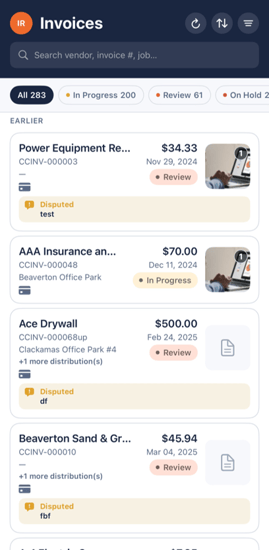
Filter chips run across the top of the Invoices list:
- All — every invoice in your queue.
- Review — disputed or rejected items that need another look.
- In Progress — items currently moving through the workflow.
- On Hold — items you have parked.
- Approved — items you have already approved.
Each chip shows a colored dot and a live count. Tap to apply the filter. Combine with the sort, filter, and search icons in the top bar for more precision.
Reading an Invoice Card
Each card on the Invoices list is designed to be read immediately, top to bottom:
|
Element |
Description |
|
Vendor |
The supplier. Bold, the largest text on the card. |
|
Invoice # · Payment |
Invoice number and payment method (credit card, reimbursement, or AP). |
|
Job |
The job to which the cost is going. |
|
Status chip |
A color-coded chip indicating workflow status. |
|
Amount · Date |
Right aligned. The date appears in short form. |
|
Thumbnail |
A preview of the document image on the far right. |
Status Colors
- Green — Approved.
- Amber — In Progress.
- Red — On Hold or Rejected.